- Published on
UX Best Practices for Configuring a RAG Chatbot
- Authors

- Name
- JK
- Description
- JK is Chief AI Architect at an AI company developing scalable AI agents. He uses this platform to share his insights on artificial intelligence and chatbots, along with technical learnings and practical experiences from building his product and working on AI systems.
- Twitter
UX Best Practices for Configuring a RAG Chatbot
Configuring a RAG chatbot should not feel like setting up infrastructure.
Most users do not want to think about AI providers, API keys, models, vector stores, chunking, relevance thresholds, or retrieval behavior before they have even created their first chatbot. They want to describe how the assistant should behave, add useful knowledge if needed, and get a working chatbot they can preview, theme, install, and improve.
At the same time, technical users do want control. They may want to bring their own API key, select a provider, choose a specific model, upload files to their own provider account, or tune how knowledge retrieval works.
That tension is where good UX matters.
The Add AI experience in Predictable Dialogs is a useful example of how to design RAG chatbot configuration for both non-technical users and power users. It keeps the first setup path simple, uses sensible defaults, supports BYOK, persists user preferences, and gradually reveals advanced controls only when they become relevant.
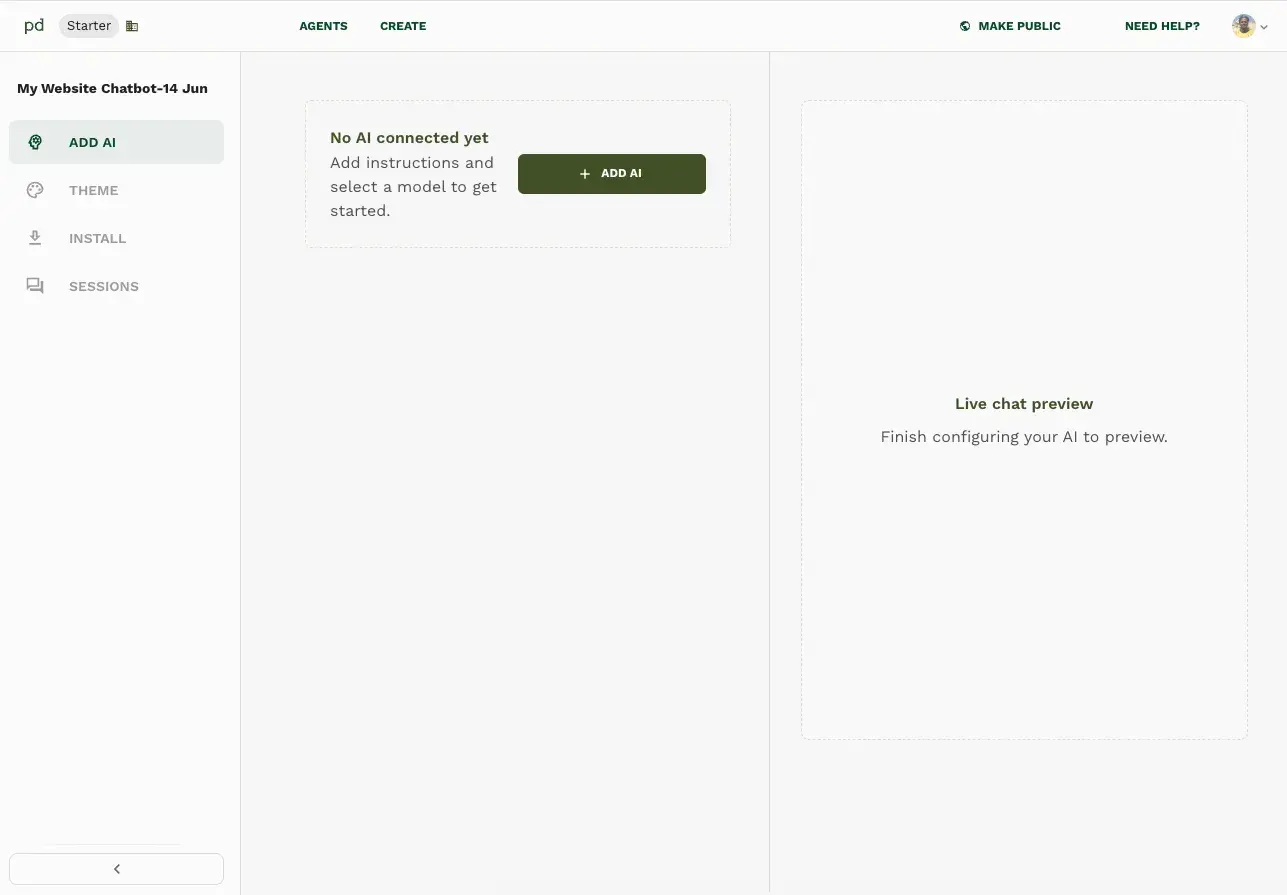
The real UX challenge in RAG chatbot setup
A RAG chatbot has more moving parts than a normal chatbot.
A user may need to configure:
- AI provider
- API key
- Model
- System instructions
- Knowledge sources
- File uploads
- Vector store behavior
- Retrieval behavior
- Chunk limits
- Relevance thresholds
- Whether knowledge should always be used or used at the model’s discretion
For a technical user, those controls are valuable. For a non-technical user, they can be overwhelming.
The best UX does not remove the advanced options. It puts them behind the right doors.
Predictable Dialogs follows a strong product principle:
A beginner should be able to create a working AI chatbot without understanding the technical stack. A technical user should still be able to customize the stack when needed.
That principle shows up throughout the Add AI experience.
A better mental model: simple first, powerful later
The overall setup journey is:
Create agent → connect AI → configure instructions → optionally enable knowledge → upload documents → tune retrieval
But the key detail is that Predictable Dialogs does not force every user through every technical decision.
For a totally new user, clicking Add AI can take them directly to the most understandable part of the setup: writing the assistant’s system instructions.
The provider, API key, and model are handled through sensible defaults.
That means a non-technical user does not have to answer questions like:
- Which AI provider should I choose?
- Do I need an API key?
- Which model is best?
- Should I use my own OpenAI key?
- What is the difference between one model and another?
Instead, the user starts with a natural task:
Tell the chatbot how it should behave.
This is excellent UX because system instructions are closer to the user’s goal than model configuration. Most people can describe the assistant they want. Far fewer people can confidently choose between models.
Best practice 1: Use sensible defaults for non-technical users
One of the strongest parts of the Predictable Dialogs setup model is that it uses defaults for technical configuration.
The chatbot can be configured with defaults for:
- AI provider
- API key
- Model
This reduces the setup burden dramatically.
For a new user, the flow does not need to begin with provider selection or API key management. It can begin with system instructions. This makes the product feel approachable because the first action is about the chatbot’s behavior, not the underlying AI infrastructure.
For example, the user can write instructions such as:
“Answer questions about our platform in a friendly and concise way. If you are unsure, ask the visitor to contact support.”
That is a much better first step than asking them to select a provider or paste an API key.
The key UX lesson is simple:
Defaults are not just convenience. In AI products, defaults are onboarding.
Best practice 2: Use progressive disclosure for provider, API key, and model settings
Sensible defaults should not trap advanced users.
Predictable Dialogs handles this by offering a small link during setup that allows users to change the default AI configuration. A more technical user can choose a different provider, add their own API key, or select a different model.
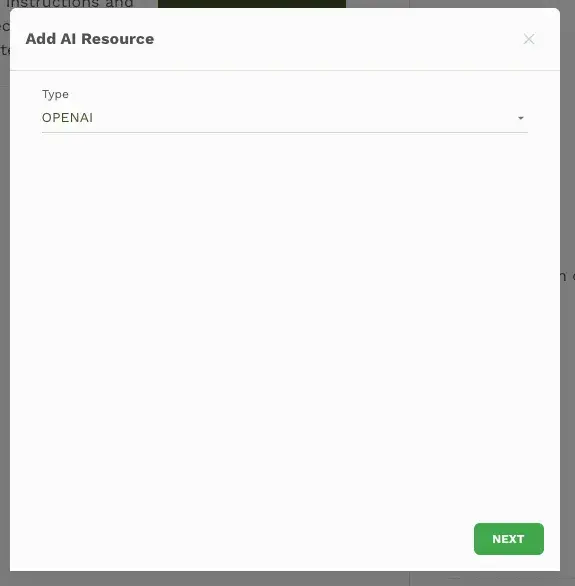
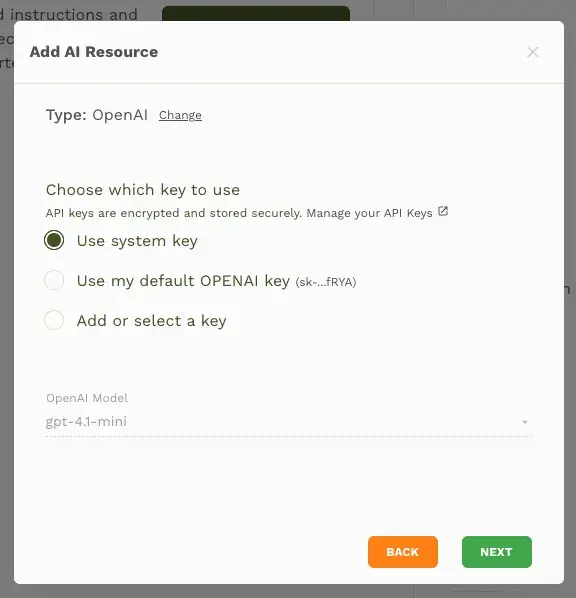
This is progressive disclosure done well.
The default path is simple:
Add AI → write system instructions → save
The advanced path is still available:
Change defaults → choose provider → select API key → choose model
This works because the technical choices are not removed. They are simply moved out of the beginner’s way.
That distinction is important. A chatbot builder should not force every user to act like a developer, but it also should not prevent developers from configuring the product properly.
Best practice 3: Support BYOK without making BYOK mandatory
BYOK, or bring your own key, is important for technical users and teams that want more control over cost, usage, provider ownership, compliance, or model choice.
But BYOK should not be required for every user.
Predictable Dialogs handles this balance by giving users multiple key options:
- Use the system key
- Use the user’s default provider key
- Add or select another key
This creates a flexible ownership model.
A non-technical user can rely on the system key and get started quickly. A technical user can add their own API key and run AI usage through their own provider account.
The important UX point is that BYOK appears as an option, not a barrier.
The product does not say:
“Before you can create a chatbot, go get an API key.”
Instead, it says:
“You can use the default setup, or you can bring your own key if you prefer.”
That difference can decide whether a user completes setup or abandons it.
Best practice 4: Persist advanced-user preferences across agents
A particularly thoughtful part of the Predictable Dialogs UX is that the setup flow adapts after a user adds their own API key.
For a totally new user, clicking Add AI can start with system instructions because the product assumes the user wants the simplest path.
But once the user clicks the advanced link, selects a different provider, and adds their own API key, the app learns from that behavior.
The next time the user creates a new chatbot agent and clicks Add AI, the modal can open from the Select Type screen instead of jumping straight to system instructions.
This is smart because the app detects that the user has already provisioned a key and may care about provider or model choice.
In other words, the product does not treat every session like the user is starting from zero. It adapts the onboarding path based on prior configuration.
That is an important UX best practice for AI tools:
Progressive disclosure should become preference-aware over time.
A beginner should see the beginner path. A technical user who has already configured provider settings should see the technical path sooner.
This makes the product feel more intelligent without adding clutter.
Best practice 5: Let users save a key as their default
When a user adds their own API key, Predictable Dialogs can give them a checkbox to make that key the user’s default key.
This is a small interaction with a large UX impact.
Without a default-key preference, users would have to repeatedly select the same key for every new agent or knowledge upload. That creates friction and increases the chance of mistakes.
With a default-key checkbox, the user can say:
“This is the key I usually want to use.”
From that point forward, the product can preselect that key where appropriate.
This is especially useful for technical users who manage multiple chatbot agents. They may want all new agents to use their own provider account by default. Persisting that preference makes the product faster and more predictable.
The best practice is:
When users make an advanced configuration choice, let them promote it into a reusable default.
Best practice 6: Carry key preferences into knowledge uploads
BYOK should not stop at chatbot completion. It should carry across the full RAG workflow.
In Predictable Dialogs, when a user has provisioned a default key and then uploads knowledge files, the upload modal can select the user’s default key by default.
That means the knowledge upload happens against the user’s provider account, using the key they provisioned.
This is important because RAG is not only about chat completions. Knowledge ingestion may also involve provider-side resources, file storage, vector stores, embeddings, or assistant-related assets.
A technical user who brings their own key often expects the related resources to live in their own provider account. The UX should make that possible and understandable.
The user can still click Change and choose a different key, such as:
- The user’s default key
- The key used by the current chatbot agent
- The system key
This gives users flexibility while keeping the common path efficient.
The best UX pattern here is:
Credential context should travel across related AI workflows.
If the user chooses their own key for AI configuration, knowledge upload should respect that preference instead of silently switching back to the system key.
Best practice 7: Make account ownership visible and changeable
When a RAG chatbot builder supports multiple key types, users need to understand which account is being used.
For example, a knowledge upload might use:
- The system key
- The user’s default key
- The specific key attached to the chatbot agent
Each option has implications. The files or vector store may be created under a different provider account depending on which key is selected.
Predictable Dialogs handles this by allowing the user to change the selected key during the knowledge upload flow.
This is important for trust.
A technical user should not have to wonder:
“Where are these files being uploaded?” “Which provider account owns this vector store?” “Is this using my key or the system key?” “Will this upload be billed to my account?”
The product should make the default sensible and the override obvious.
This is especially important for BYOK products because users who bring their own credentials often care deeply about ownership, billing, and control.
Best practice 8: Make system instructions the center of first-time setup
System instructions are one of the most important parts of chatbot configuration because they define how the assistant should behave.
They answer questions like:
- What is the chatbot’s role?
- What tone should it use?
- What should it avoid?
- How should it handle uncertainty?
- Should it be brief, detailed, friendly, formal, or playful?
For a website chatbot, system instructions are often more meaningful to the user than provider or model selection.
Predictable Dialogs reflects this by making instructions a core part of the Add AI flow. Once the AI is connected, the instructions remain editable inside the AI Settings card.
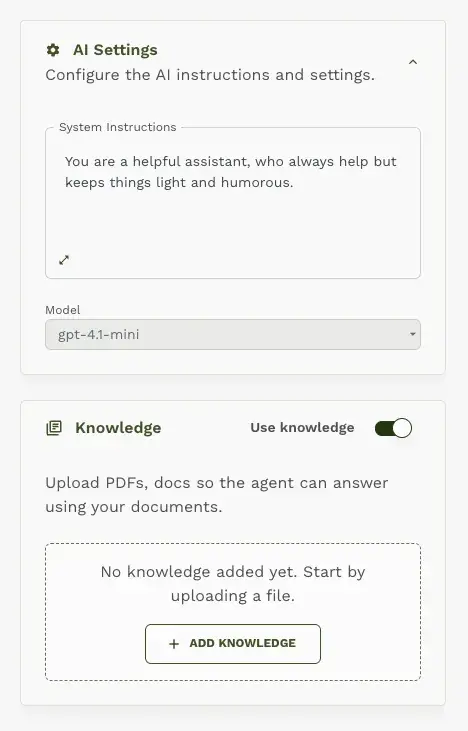
This creates continuity between first-time setup and ongoing configuration. The user does not have to learn a new place to manage assistant behavior. They can return to the Add AI section and edit the same core settings later.
Best practice 9: Separate AI behavior from knowledge
A common mistake in RAG chatbot UX is mixing assistant behavior and knowledge retrieval into one large configuration panel.
They are related, but they are not the same.
AI settings define how the chatbot behaves. Knowledge settings define what information the chatbot can use.
Predictable Dialogs separates these concepts into two cards:
- AI Settings
- Knowledge
This separation makes the configuration easier to understand.
A user can first decide:
“How should this chatbot respond?”
Then they can decide:
“Should this chatbot answer using uploaded documents?”
That second question is optional. Not every chatbot needs retrieval. Some chatbots only need a clear role and instructions. Others need a document-backed knowledge base.
Treating knowledge as a separate capability avoids making RAG feel mandatory.
Best practice 10: Make knowledge optional, but easy to enable
The Knowledge card starts with Use knowledge turned off.
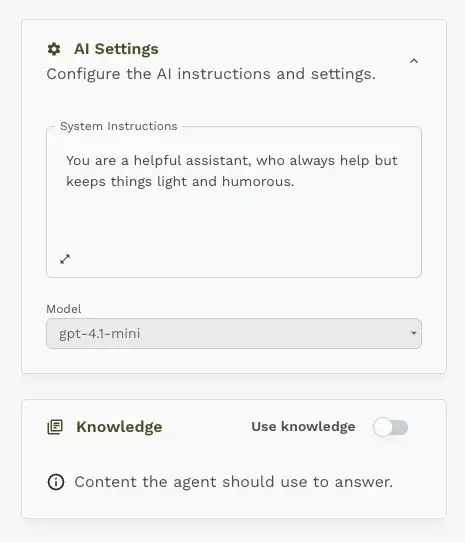
This is a helpful default because it lets users understand that knowledge is an optional capability. The card explains that uploaded PDFs or docs allow the agent to answer using documents.
When the user turns knowledge on, the card expands into an upload-ready state.
The user sees a clear empty state:
“No knowledge added yet. Start by uploading a file.”

This is a good UX pattern because the product does not immediately ask the user to understand vector databases or retrieval pipelines. It simply says: add files if you want the chatbot to answer from your documents.
Best practice 11: Use one default vector store instead of making users manage infrastructure
A particularly important UX decision is that Predictable Dialogs allows the user to add a single vector store with multiple files in it.
The user does not need to name the vector store. The user does not need to choose where it is stored. The user does not need to create multiple indexes. The user does not need to understand retrieval architecture.
They simply add knowledge files, and the chatbot uses them.
This is exactly the right abstraction for most website chatbot users.
From a technical perspective, the system may be using a vector store. But from the user’s perspective, it is simply the chatbot’s knowledge.
That language matters. Non-technical users think in terms of files, documents, and answers. They do not think in terms of vector stores, embeddings, and retrieval indexes.
A strong RAG chatbot UI should hide infrastructure unless the user explicitly needs to manage it.
Best practice 12: Let users decide whether knowledge should always be used
One of the most important design choices in Predictable Dialogs is the control over how knowledge is used.
After adding knowledge, the user can choose whether the assistant should:
- Use knowledge on every reply
- Let the assistant decide when to use knowledge
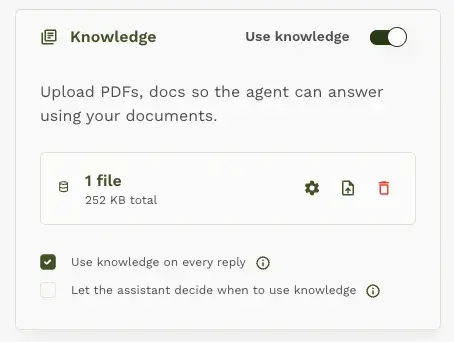
This may look like a small setting, but it has a major effect on chatbot behavior.
If the chatbot is answering questions for a business website, predictability matters. The website owner may want every answer grounded in uploaded documentation. In that case, forcing the assistant to use knowledge on every reply can make responses more consistent and reliable.
But there are also cases where the chatbot should have flexibility. For example, if a visitor says “hello” or asks a general question, the assistant may not need to retrieve from documents. In those cases, letting the assistant decide can produce a more natural conversation.
Predictable Dialogs supports both modes.
The default behavior can prioritize predictability by using knowledge when it is present, while still allowing advanced users to choose a more flexible mode.
This is a smart UX pattern because it acknowledges an important truth about AI products:
Predictability and flexibility are both valuable, but different users need different balances.
Best practice 13: Use upload modals for document management
Adding knowledge is a resource-management action. It is not just a normal settings change.
That makes a modal a good fit.
The Predictable Dialogs upload modal includes:
- Drag-and-drop upload area
- Select button
- Advanced options accordion
- Close and Upload actions

This keeps the user focused on the task of adding documents. It also keeps the main Add AI page clean.
The modal pattern is especially useful for RAG chatbot builders because document upload can involve multiple states:
- No files selected
- Files selected
- Uploading
- Completed
- Failed
- Delete file
- Add more files
- Change selected key
- Upload using system key or user key
Moving this into a focused modal prevents the main configuration page from becoming cluttered.
Best practice 14: Show file status, size, and delete controls
After files are uploaded, the Knowledge card shows the number of files and the total size. There is also a file-management modal that can show uploaded files with status, size, and per-file delete controls.
This gives the user confidence.
They can see that the file was uploaded. They can see whether processing completed. They can remove a file if it is wrong. They can add more files later. They can understand that knowledge exists and is available to the chatbot.
For RAG chatbots, this visibility is essential. If users do not know what knowledge the chatbot has, they will not trust its answers.
Good RAG UX should make knowledge sources inspectable and manageable.
Best practice 15: Hide retrieval tuning behind advanced controls
RAG systems often need tuning, but most users do not need to tune retrieval on day one.
Predictable Dialogs handles this with a gear icon for retrieval settings.
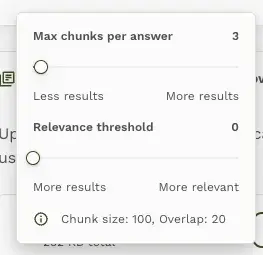
The popup includes controls such as:
- Max chunks per answer
- Relevance threshold
- Chunk size
- Overlap
This is useful for technical users because it gives them control over how much context is retrieved and how strict the retrieval process should be.
It also protects non-technical users because these settings are not shown in the primary setup path.
The labels are especially important. A setting like relevance threshold can sound technical, but the UI can make the tradeoff understandable by framing it as:
- More results
- More relevant
That turns a retrieval parameter into a human decision.
Best practice 16: Use disabled navigation to teach setup order
Before an AI resource exists, the sidebar shows:
- Add AI
- Theme
- Install
- Sessions
Only Add AI is active. The other sections are disabled.
This is effective because it teaches the dependency without a long explanation. The user understands that they must connect AI before they can theme, install, or review sessions.
The live chat preview also reinforces this dependency. It is visible, but inactive, with a message telling the user to finish configuring the AI first.
This is a subtle but important UX pattern.
Disabled states should not feel like dead ends. They should explain what needs to happen next.
Best practice 17: Use different UI patterns for different levels of complexity
Predictable Dialogs uses a clean hierarchy of interface patterns:
Guided setup for first-time AI creation
Cards for ongoing configuration
Toggles for optional capabilities
Modals for adding and managing resources
Small links for progressive disclosure
Checkboxes for persistent preferences
Accordions for advanced options
Gear popups for technical tuning
This creates a scalable UX model.
As the product grows, new capabilities can fit into the same structure. A required setup item can become part of the wizard. An optional capability can become a card. An integration can use a modal. Advanced configuration can live in an accordion or settings popup.
This matters because AI products tend to become more complex over time. Without a clear UX model, every new capability risks making the setup experience heavier.
The Predictable Dialogs pattern keeps the product extensible without overwhelming the user.
How this helps non-technical users
For non-technical users, the Add AI experience works because it avoids unnecessary decisions.
They do not need to start by selecting a provider. They do not need to bring an API key. They do not need to compare models. They do not need to name a vector store. They do not need to understand retrieval settings. They do not need to decide where files are stored.
They can simply:
- Add AI
- Write system instructions
- Turn on knowledge if needed
- Upload files
- Preview the chatbot
That is the right amount of control for someone who wants a website chatbot but does not want to manage AI infrastructure.
How this helps technical users
For technical users, the experience still provides control.
They can change the AI provider. They can add or select their own API key. They can save a key as their default. They can choose a model. They can create future agents faster using their saved preferences. They can upload knowledge using their own provider account. They can change which key is used for knowledge upload. They can tune retrieval settings. They can decide whether knowledge should always be used. They can manage uploaded files.
This is important because technical users often have specific requirements around cost, latency, model quality, billing, privacy, ownership, or answer grounding.
The product does not force them into the default path. It simply makes the default path easier for everyone else.
Why BYOK and persisted preferences matter
BYOK is not just a technical feature. It is a UX commitment.
When a user brings their own key, they are saying:
“I want more control over how this chatbot runs.”
A good product should respect that choice across the experience.
That means:
- Remember the key.
- Let the user make it the default.
- Use the default where appropriate.
- Make it clear which key is being used.
- Allow the user to change it.
- Carry the preference into related workflows like knowledge upload.
This creates trust.
Without preference persistence, BYOK becomes repetitive. Without visibility, BYOK becomes confusing. Without override controls, BYOK becomes rigid.
Predictable Dialogs handles this by combining three patterns:
Progressive disclosure: advanced provider and key settings are hidden until needed.
Preference persistence: user-added keys can become defaults.
Context carryover: knowledge uploads can use the user’s default key or another selected key.
Together, these patterns make BYOK usable instead of merely available.
Why “always use knowledge” improves predictability
One of the hardest parts of building a reliable AI chatbot is making answers predictable.
When knowledge is optional and the model decides whether to use it, answers can sometimes vary. The assistant may answer from general model knowledge in one case and retrieved knowledge in another.
That flexibility can be useful, but it can also create uncertainty.
For business use cases, especially website support chatbots, users often want the chatbot to answer from approved content. That is why the option to use knowledge on every reply is important.
It makes the chatbot more predictable because the assistant consistently grounds itself in the uploaded material.
At the same time, Predictable Dialogs does not remove flexibility. Users can still choose the mode where the assistant decides when knowledge is needed.
This is the right balance:
Default toward predictable answers. Allow flexibility for users who want it.
A practical UX checklist for RAG chatbot configuration
Use this checklist when designing or evaluating a RAG chatbot builder:
- Start with a clear “No AI connected yet” empty state.
- Make the primary setup action obvious.
- Use sensible defaults for provider, API key, and model.
- Let non-technical users begin with system instructions.
- Provide a small advanced link for changing provider, key, and model.
- Support BYOK without making BYOK mandatory.
- Let users save an added API key as their default.
- Adapt future setup flows based on saved provider or key preferences.
- Carry key preferences into related workflows like knowledge upload.
- Make it clear which key or account is being used.
- Allow users to switch between system key, user default key, and agent key.
- Separate AI behavior from knowledge configuration.
- Make knowledge optional with a clear toggle.
- Avoid making users name or manage vector stores directly.
- Allow one knowledge store with multiple files for simple use cases.
- Let users choose whether knowledge is always used or used at the model’s discretion.
- Use upload modals for adding documents.
- Show uploaded files, file size, status, and delete controls.
- Hide retrieval tuning behind advanced settings.
- Explain technical tradeoffs in user-friendly language.
- Disable unavailable navigation until setup dependencies are complete.
- Support beginners and power users in the same flow.
Why this matters for RAG chatbot adoption
RAG chatbots are powerful because they combine model intelligence with private or business-specific knowledge. But that power introduces complexity.
A poor setup experience exposes all of that complexity at once. It asks users to make technical decisions before they understand the product’s value.
A good setup experience does the opposite.
It helps users create a working chatbot first, then gives them more control as their needs become more advanced.
Predictable Dialogs Add AI experience shows how this can work in practice. It uses sensible defaults for non-technical users, keeps provider and model configuration available for technical users, supports BYOK, persists user preferences, separates AI settings from knowledge, supports a simple single knowledge store, and gives users control over whether knowledge should always be used.
That is the core UX lesson for RAG chatbot builders:
Make the first chatbot easy to create. Make the advanced controls easy to find. Remember the user’s preferences. Make the answers predictable when knowledge matters.
FAQ: RAG chatbot configuration UX
What is the best UX pattern for setting up a RAG chatbot?
The best pattern is progressive setup. Start with the simplest required step, such as system instructions, and use sensible defaults for technical configuration like provider, API key, and model. Then let users enable knowledge, upload files, and tune retrieval only when needed.
Should non-technical users have to choose an AI provider or model?
Usually no. Non-technical users should be able to rely on sensible defaults. Technical users should still have access to provider, API key, and model settings through an advanced link or configuration panel.
What is BYOK in an AI chatbot builder?
BYOK means “bring your own key.” It allows users to add their own provider API key instead of using the system key. This gives technical users more control over billing, ownership, model access, and provider resources.
Should BYOK be required?
No. BYOK should be optional. A good chatbot builder should let beginners use system defaults while allowing advanced users to bring their own key when they need more control.
Why should a chatbot builder remember a user’s API key preference?
Persisting a user’s key preference reduces repeated setup work and makes future agent creation faster. It also helps technical users maintain consistent provider, billing, and ownership preferences across multiple chatbot agents.
Why should knowledge upload use the user’s selected key?
When users bring their own key, they may expect knowledge files, vector stores, or provider-side resources to be created under their own provider account. Using the user’s default key for knowledge upload respects that ownership model while still allowing them to switch to another key.
Why should system instructions come before model configuration?
System instructions are easier for most users to understand because they describe how the chatbot should behave. Model configuration is more technical and can often be handled through defaults.
Should a RAG chatbot always use uploaded knowledge?
For business and support use cases, always using uploaded knowledge can improve predictability because answers are grounded in approved content. However, some users may prefer to let the assistant decide when knowledge is needed for a more flexible conversation.
Should users have to manage multiple vector stores?
Most users should not need to manage vector stores directly. A simpler UX is to provide one default knowledge store that can contain multiple files. The chatbot can use that knowledge automatically when it is enabled.
Where should retrieval settings appear?
Retrieval settings such as max chunks, relevance threshold, chunk size, and overlap should appear in an advanced area, gear popup, or accordion. They are useful for technical users but should not block first-time setup.
What makes Predictable Dialogs Add AI flow effective?
The Add AI flow is effective because it supports both beginners and advanced users. Beginners can use defaults and focus on instructions. Technical users can change provider, API key, model, and retrieval behavior. Knowledge is optional, manageable, and configurable without making the initial setup feel heavy.